 TubeWrist
TubeWrist › Guides › Audio-only listening
Listen to videos like podcasts on Apple Watch
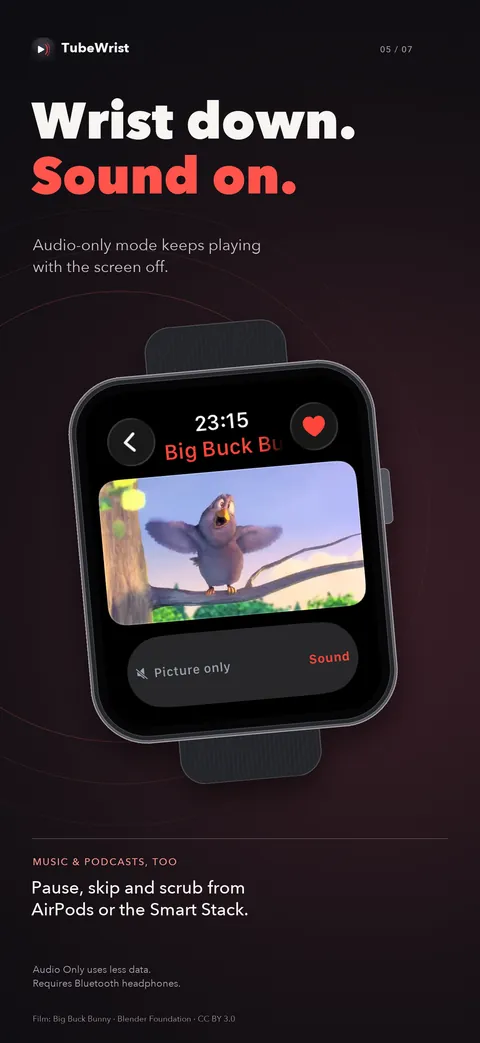
Talks, interviews, lectures, and music mixes are mostly about the sound. Audio-only mode in TubeWrist plays just that, straight from your watch to your AirPods.
How to turn on audio-only mode
- Connect headphones. Pair AirPods or other Bluetooth headphones with your Apple Watch. Audio-only mode needs them, because there is no picture to fall back to.
- Turn on Audio Only. In TubeWrist, open Settings ▸ Playback and switch on Audio Only.
- Play and lower your wrist. Pick any video. It streams only the sound and keeps playing with your wrist down.
Why listen without the picture
Less data, less battery. Skipping the video stream is the cheapest way to listen over cellular. It keeps playing. Lower your wrist and playback continues, with pause, skip, and scrubbing from Now Playing on the watch face, the Smart Stack, or your AirPods.
Built for falling asleep and long listens
Set the sleep timer and playback stops on its own. Change playback speed from 0.5× to 2×; TubeWrist remembers it between videos. Add episodes to the queue and they play in order.
Works without your iPhone
Audio-only streams over Wi-Fi or cellular from the watch itself. Your phone can stay at home.
 $1.99 · 3 days fully unlocked · watchOS 10+